Frequently Asked Questions
Answers to common questions about purchasing, accounts, subscriptions, and licensing. For technical help with the extension itself, see the documentation or open a support ticket.
Purchasing
Payments are processed by Stripe. Available methods depend on your country, the currency you choose, and Stripe account settings. Stripe will show the options it can use for your location. That can include cards, PayPal, and other regional methods where supported.
After purchase, you can open Manage Subscription to add or change the saved payment method for future invoices.
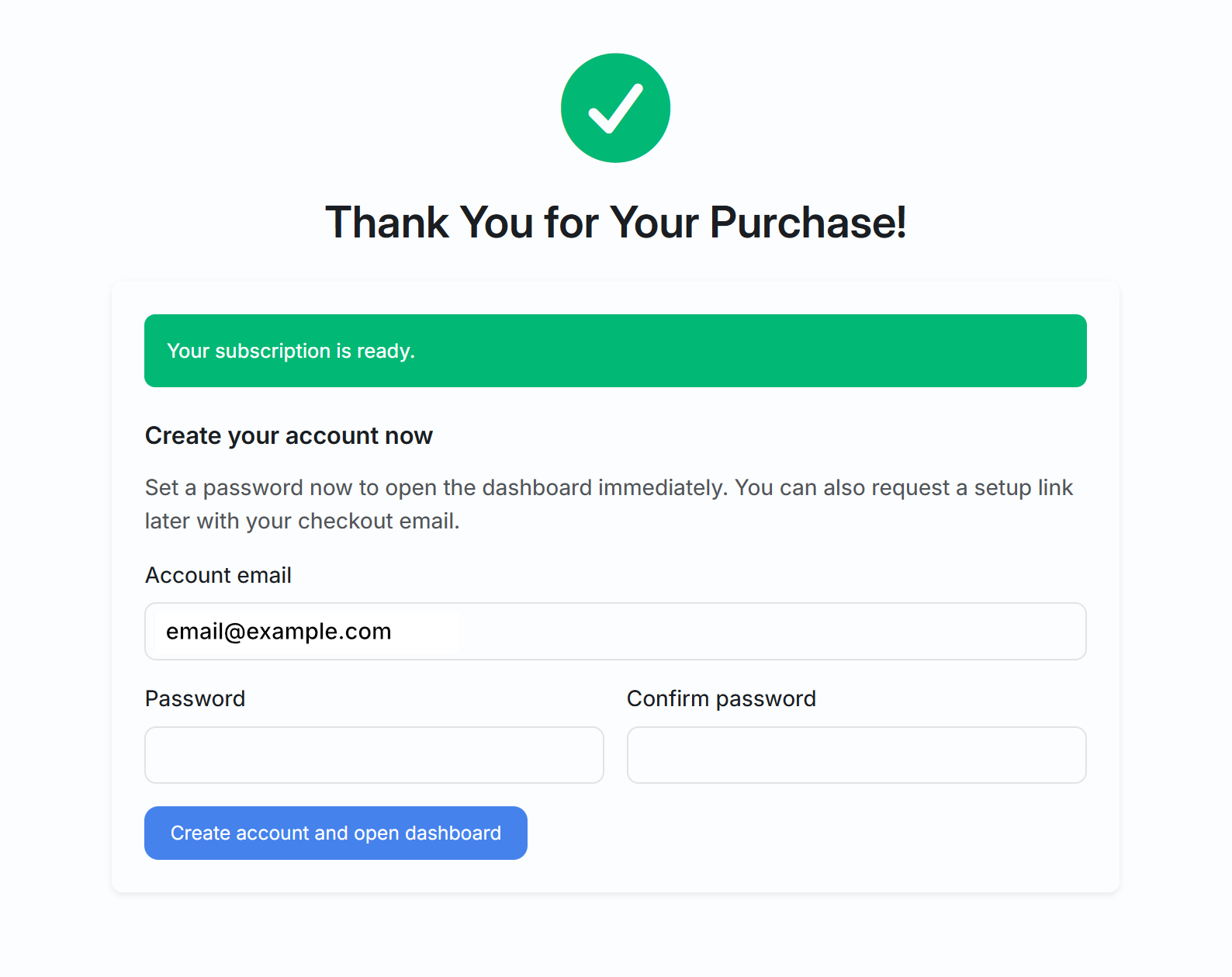
After Stripe confirms your payment, you return to a success page where you can immediately set your dashboard password. A setup link is also sent to your checkout email as a convenience.
Choose whichever method you prefer — set your password right away on the success page, or click the link in your email. If the email does not arrive, use the account claim page to request a fresh link.
The workspace name is a label for your shared team environment — it appears in licensing screens and support tickets. It can be anything: your company name, team name, or a personal label like "Jane's Workspace". You can rename it later in your workspace settings.
Yes. PhpThunder offers a 30-day Pro trial with full access to every Pro feature and no credit card required. The trial starts automatically the first time you install the PhpThunder extension in VS Code — just install it and the trial is already active.
If you have a problem with your purchase, please contact support and we will work with you to resolve it. Refund requests are handled on a case-by-case basis.
Account & Login
After a successful purchase, a setup link is sent to your checkout email. Click the link to set your password and activate your account. If you did not receive the email, visit the account claim page, enter your checkout email, and we will send a fresh link.
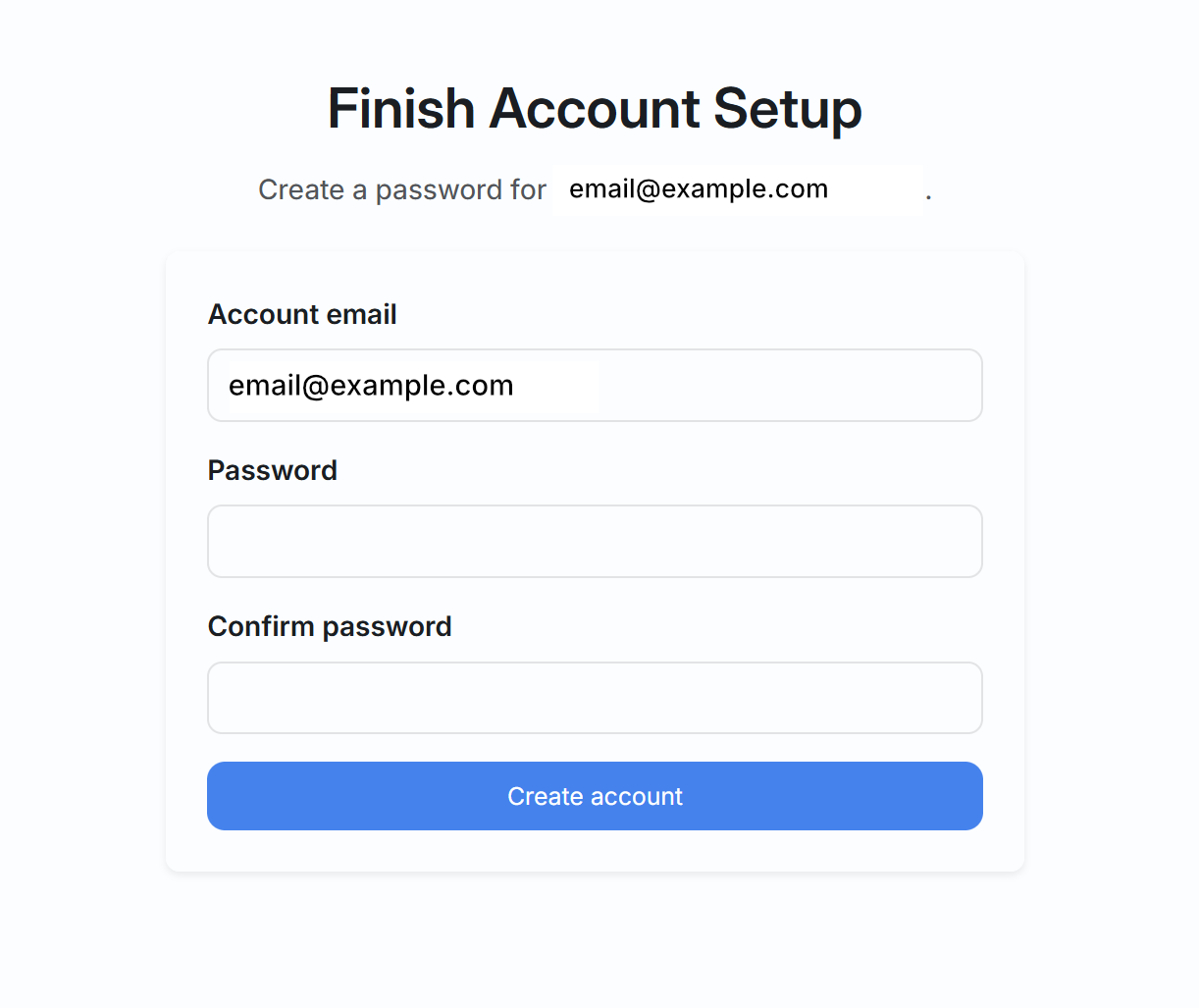
When a workspace owner adds you as a member, an invitation email is sent to your address. Follow the link in that email to set your password — the same claim page handles both new purchases and workspace invitations.
If the invitation email expired or never arrived, go to the account claim page and enter your email.
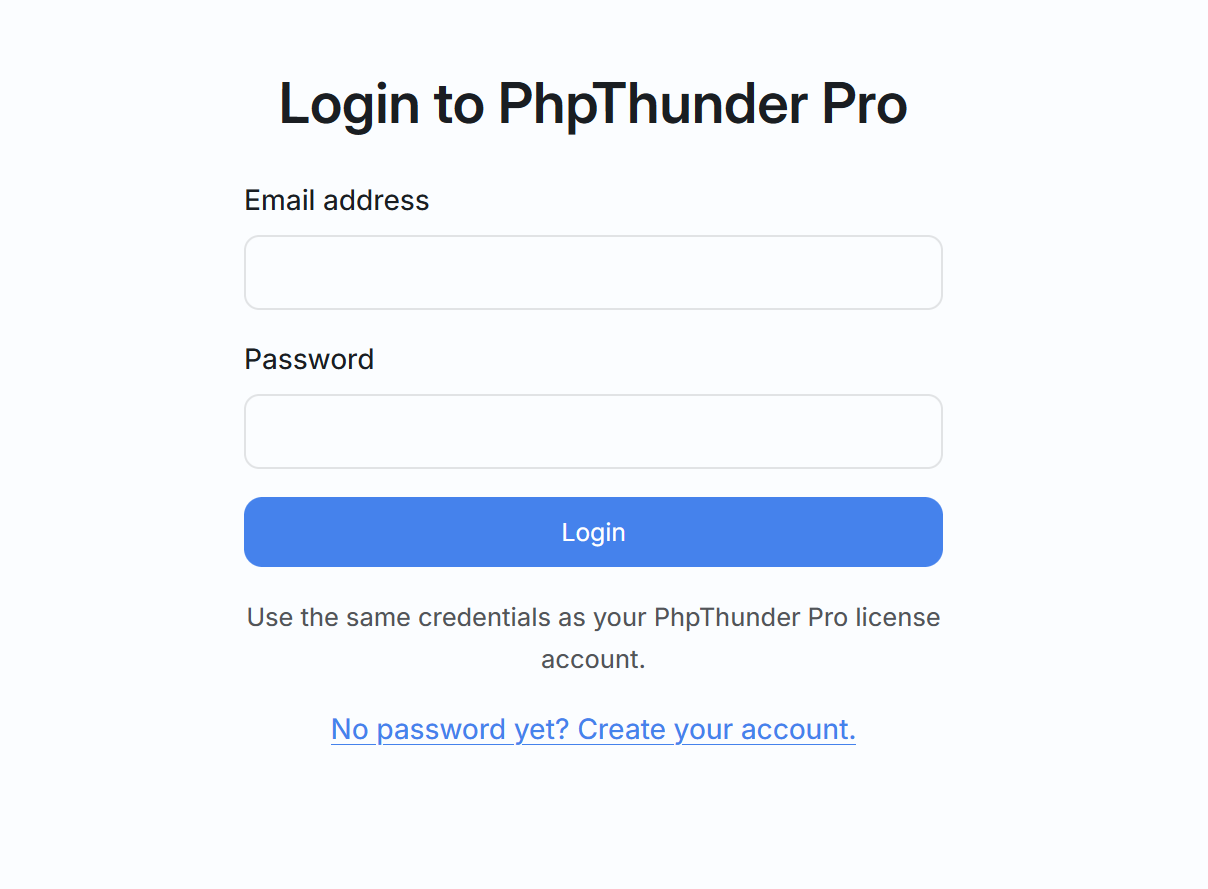
Go to the login page and enter your email and password. Use the same email as your PhpThunder Pro purchase or workspace invitation.
Go to the account claim page, enter your email address, and we will send you a one-time setup link. Clicking the link lets you set a new password.
Yes. Log in and go to Account Settings. The Profile section lets you update your display name and your email address.
Subscription
Monthly billing charges you per seat each month. Your perpetual license activates after 12 consecutive months of payment.
Annual billing charges you for a full year upfront at a 20% discount and activates the perpetual license immediately. It is the better option if you know you will use PhpThunder long-term.
Both billing periods apply the same loyalty discounts at renewal.
The price per seat decreases automatically at renewal:
- Year 1: full list price
- Year 2: approximately 20% off
- Year 3+: approximately 40% off
Loyalty discounts apply to all tiers (Starter, Team, Business) and require no coupon code — they are applied automatically.
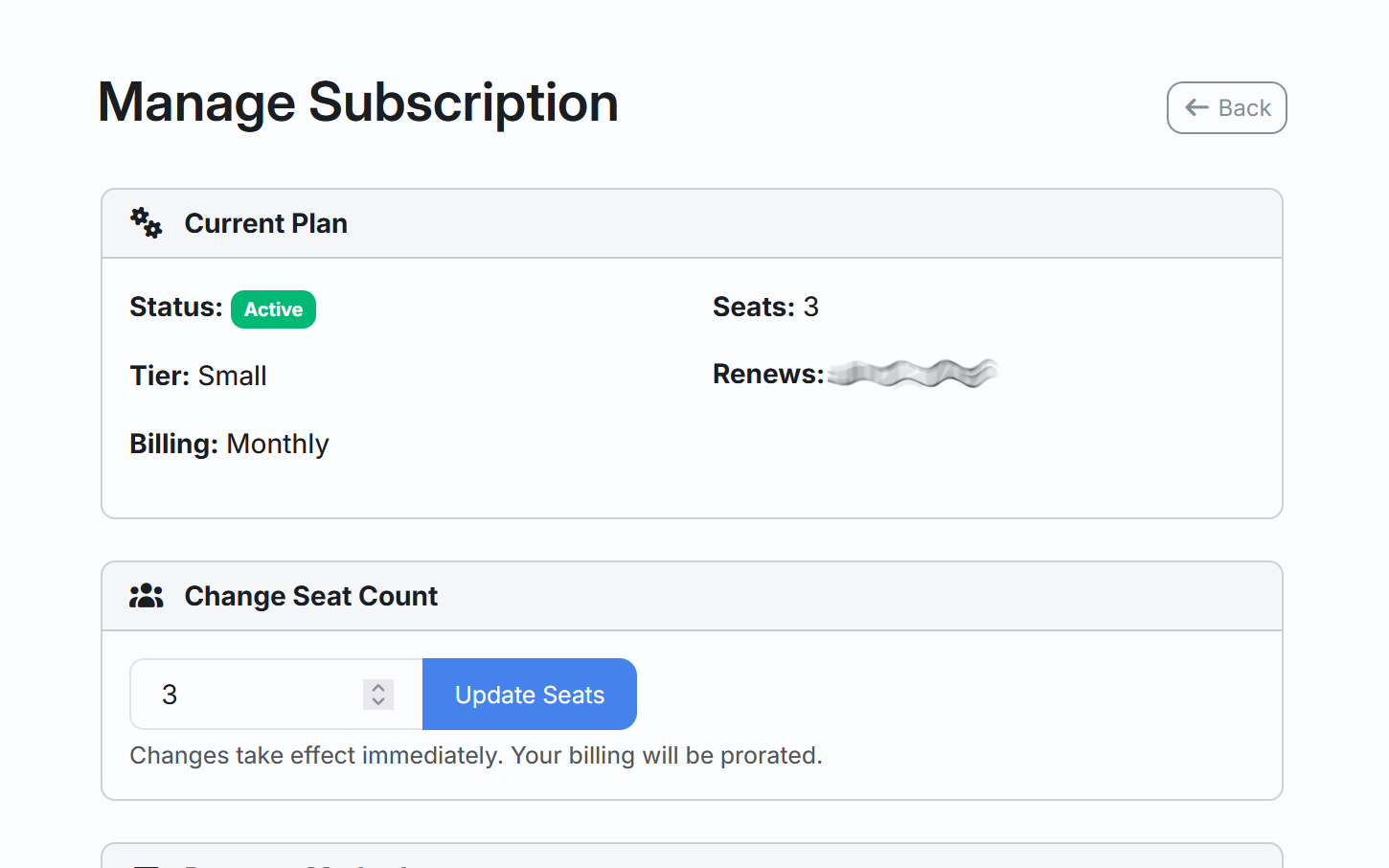
Log in and go to Manage Subscription. Use the seat adjustment field to increase or decrease your seat count. Changes take effect immediately: adding seats creates a prorated invoice for the remainder of the billing period; removing seats creates a prorated credit.
Every subscription includes a perpetual license entitlement for the version of PhpThunder available at the start of your 12-month term. This means that even if you cancel, you keep perpetual access to that version.
- Annual — perpetual license activates at purchase.
- Monthly — perpetual license activates after 12 consecutive months of payment.
The perpetual license covers the number of seats you held at the time of vesting and does include updates of the same version.
Log in and go to Manage Subscription. Click Cancel subscription. Your access continues until the end of the current billing period; you will not be charged again after that. Cancellation does not affect any perpetual license entitlement you have already vested.
Yes. Go to Manage Subscription and click Reactivate while you are still within the paid period. If the subscription has already expired, use the order page to start a new one — note that restarting resets your loyalty discount year counter to year 1.
License & Devices
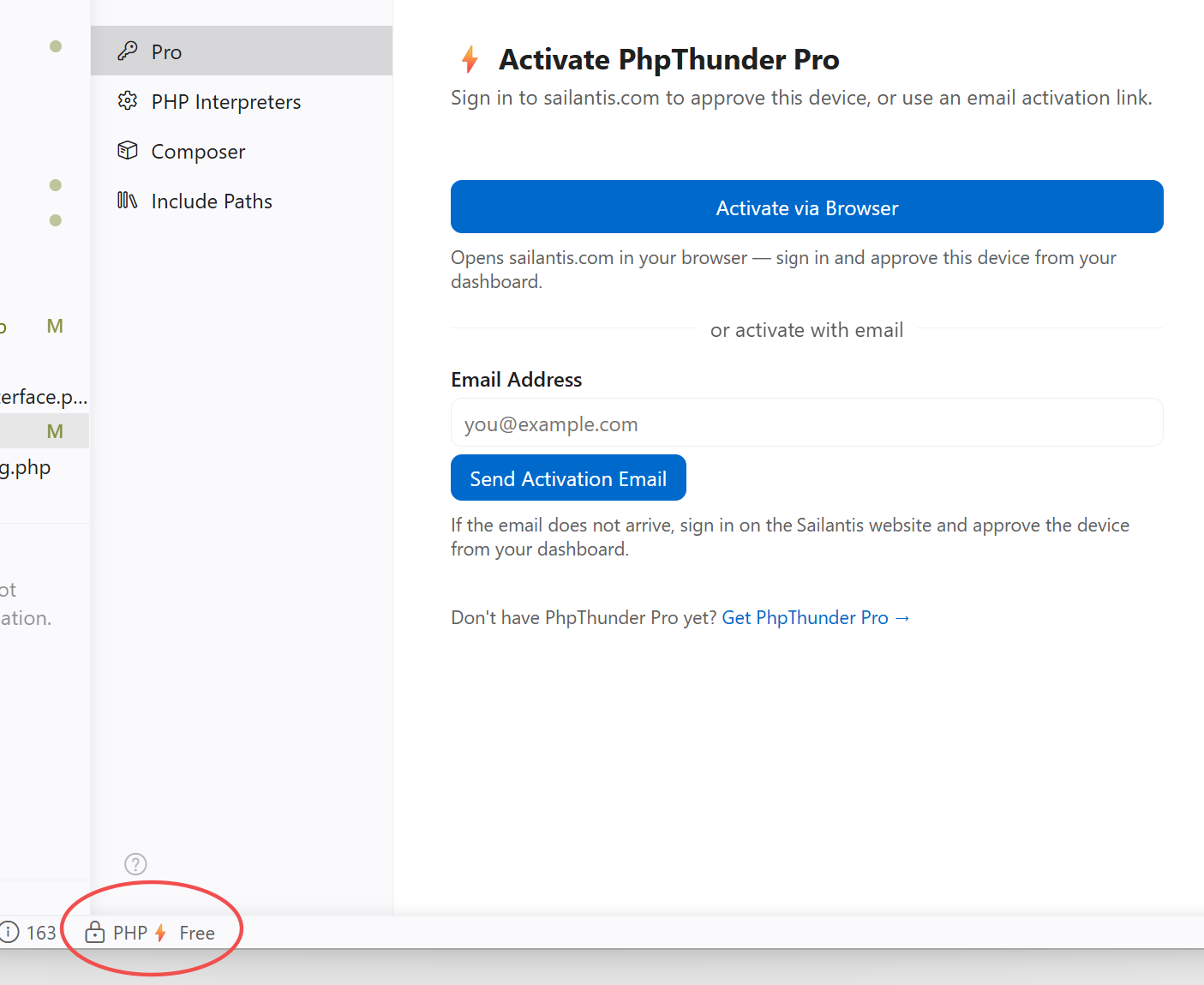
Run
PhpThunder: Activate License
from the VS Code command palette or click on the status bar.
You can sign in
with your Sailantis account to fetch
available licenses, or enter a license
key
directly if you
have one. The status bar updates
immediately.
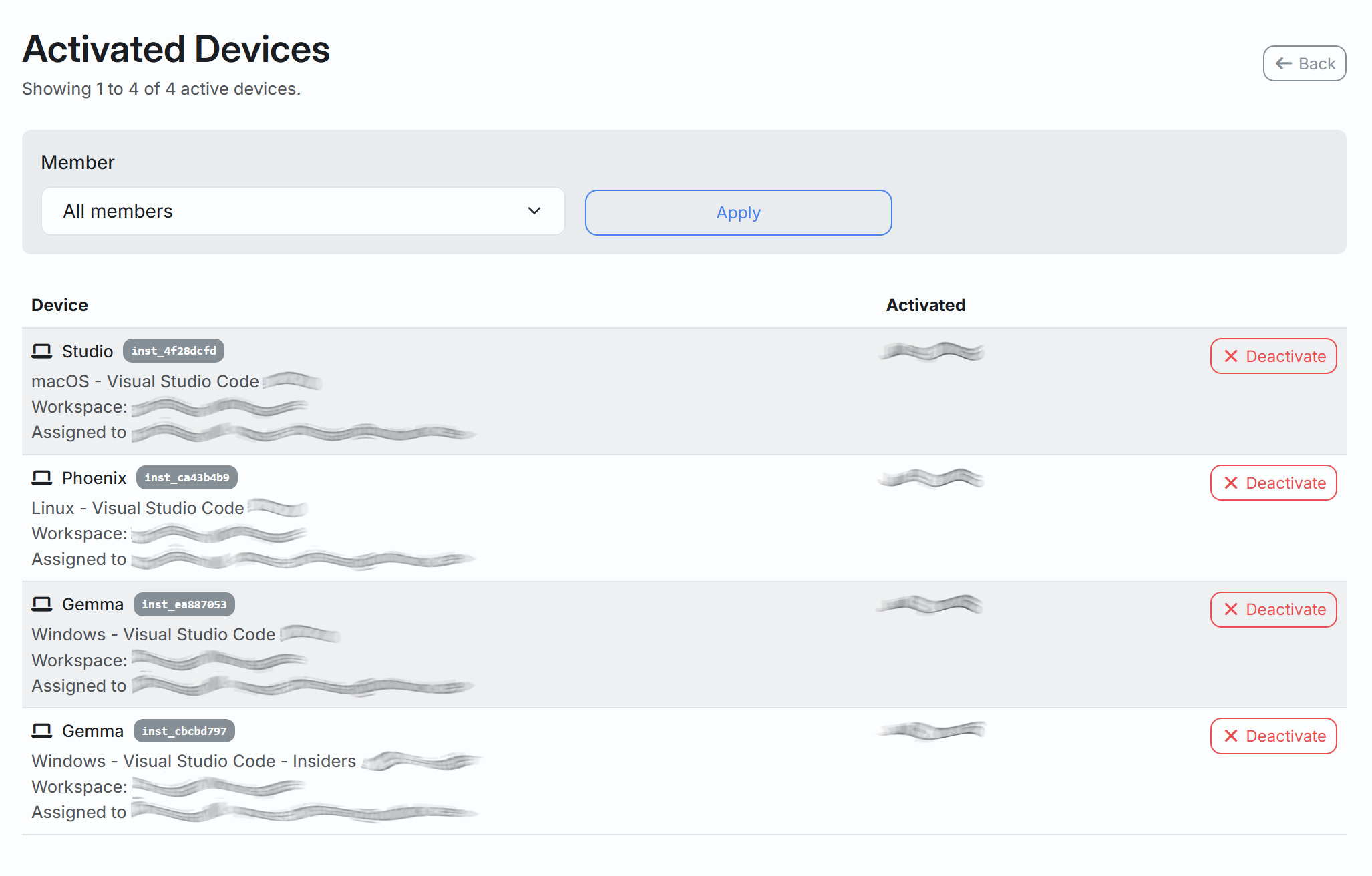
Each seat allows up to 10 simultaneous active devices. A device is any VS Code installation where you have activated PhpThunder Pro. If you reach the limit, deactivate an old installation from Devices in your dashboard before activating a new one. Devices are automatically considered free after 30 days of inactivity.
Log in and go to Devices. Find the device you want to remove and click Deactivate. The slot becomes available immediately for a new machine. Unused devices are automatically deactivated after 30 days of inactivity.
A workspace is the container for your PhpThunder Pro subscription. Each seat in the workspace is assigned to one team member. The workspace owner can add members, assign seats, and manage devices from Workspace Settings.
Adding a member does not automatically assign them a seat — you allocate seats separately so you can control costs.
Log in and go to Workspace Settings. Click Add member, enter the member's email and name, and confirm. An invitation email is sent automatically so they can create their account.
When a team member activates PhpThunder Pro from VS Code, the activation link is send to the workspace member for approval. If there is a problem with receiving the approval email, the member or admin can open the Pending Activations page in the dashboard to manually approve or reject the activation.
Invoices & Billing
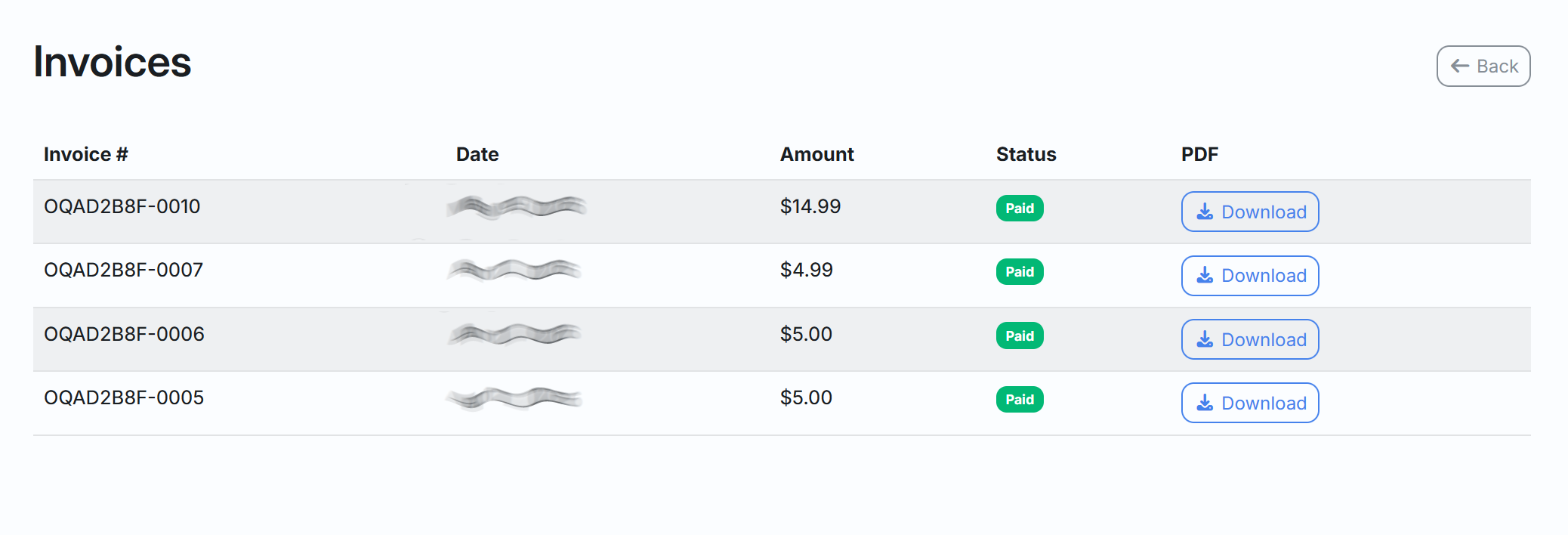
Log in and go to Invoices in your dashboard. All past invoices are listed there and can be downloaded as PDF.
If a renewal payment fails, PhpThunder
enters a Grace Period
instead of cutting
off Pro access immediately. The status
bar in VS Code shows
PHP Grace Period. During
this period, all Pro features remain
available while you sort out the
payment.
Stripe will automatically retry the charge. If you need to update your payment method, open Manage Subscription and save a new method there. If you still need help, contact support.
When you add seats mid-billing period, Stripe generates an immediate prorated invoice for the remainder of the period. Payment is collected right away.
When you remove seats, a prorated credit is applied to your next invoice — you are not charged for unused time.
Prices shown are exclusive of any applicable taxes. Stripe calculates and adds tax where required at checkout based on your billing address. The final invoice will show the applicable tax amount separately.
Yes. Open Manage Subscription in your dashboard to update your billing name, address, VAT ID, and saved payment method. Stripe will show the payment methods available for your region, and the one you choose becomes the default for future invoices.
Support
Use the support ticket form to open a new ticket. If you have an account, you can also view your ticket history from Dashboard / Support after logging in.
For billing or account issues, include your registered email address and a description of the problem. For technical issues, also include:
- VS Code version
- PhpThunder version (shown in the Extensions panel)
- PHP version and operating system
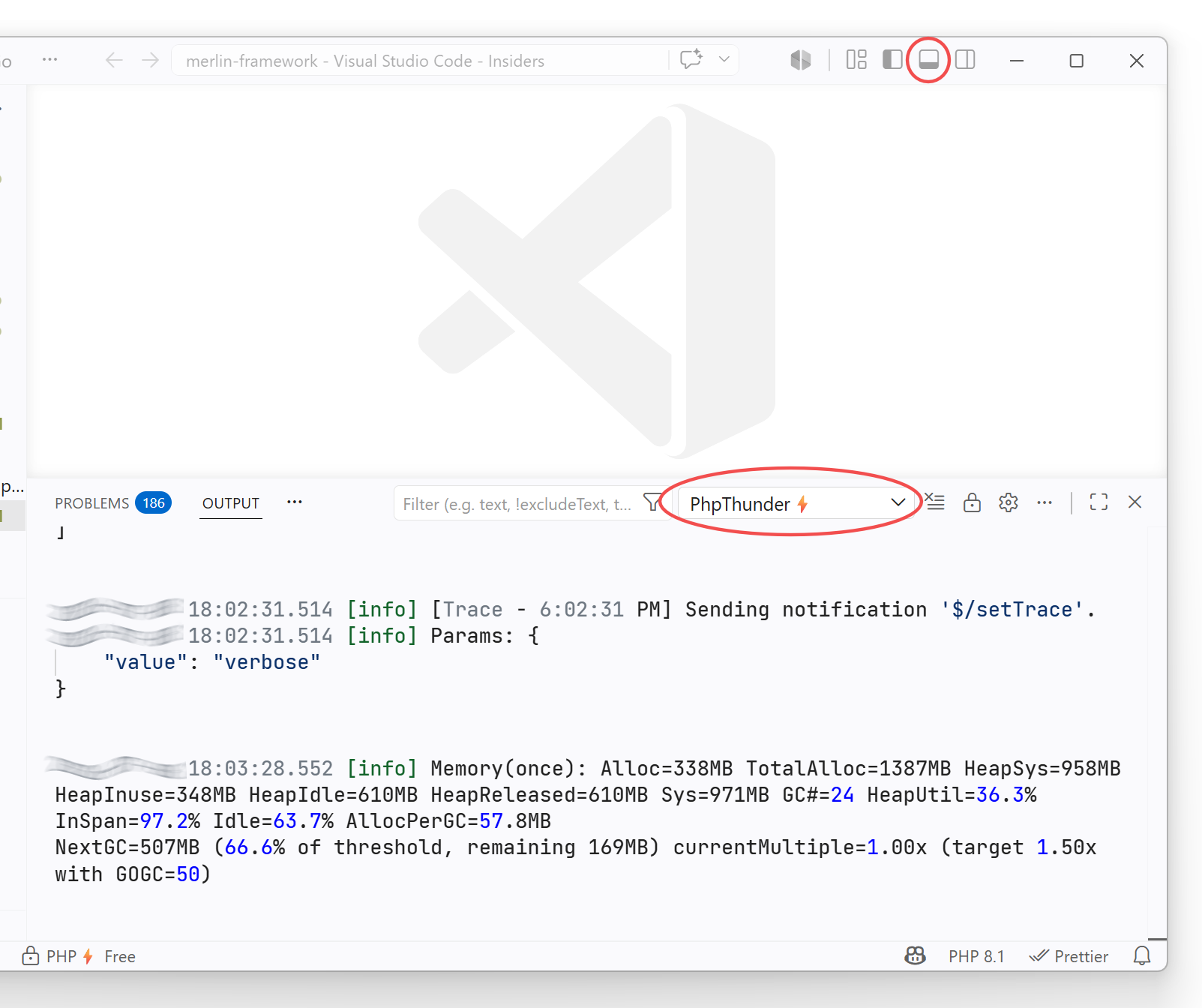
- Any error messages you see in the PhpThunder Language Server output channel
Check the documentation for technical questions about the extension itself. For everything else, open a support ticket and we will get back to you.